FM27 Player Comparison: Choose a Replacement, Backup or Wage Saving
Compare players for a specific decision and see the reasons side by side.
Import your squad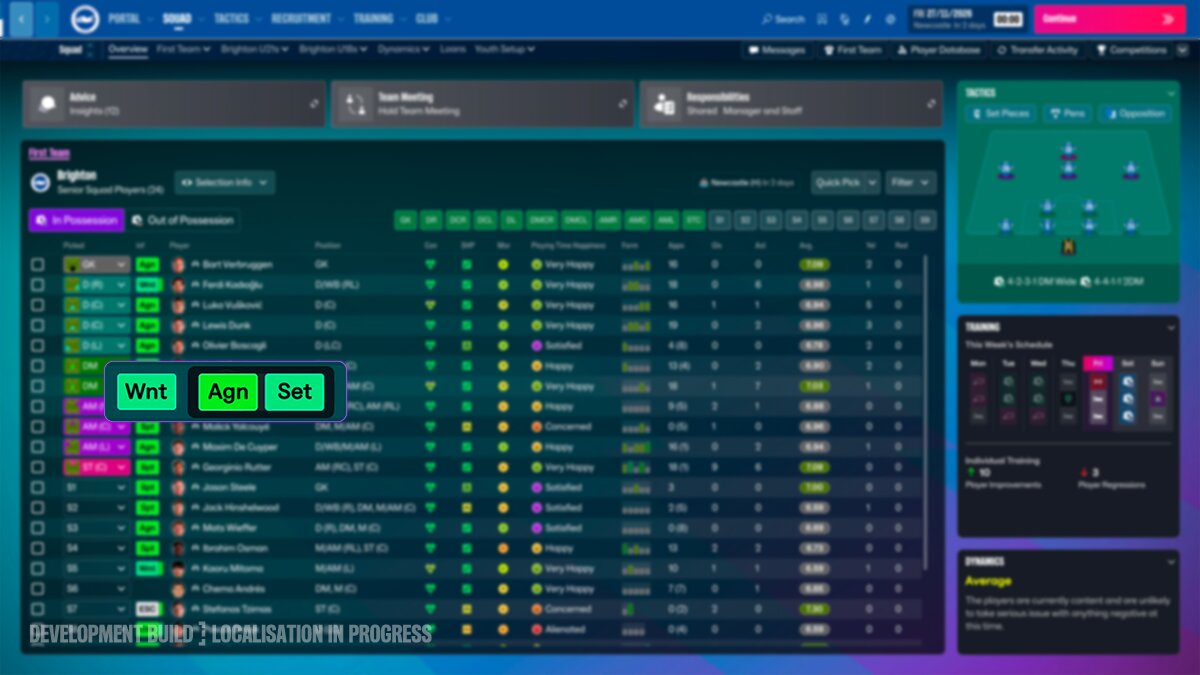
Bring your squad into focus
Choose an FM27 career save or a squad CSV once. Your lineup, depth and planning tools use the same players.
Your save is read on your device. Only the squad you import is kept in this browser for your next visit.The save reader looks for your managed club, positions, attributes and contract dates. No game installation needs to be running. If a reading is missing or the save cannot be read, a squad CSV can provide another route.
How to get a useful FM27 squad CSV
On Windows, FM View Exporter can save the squad table as CSV. Its Analyzer squad view includes player IDs, contracts and the attributes needed for role comparisons. Open that view in FM27, then export the squad. A FMSuperScout shortlist CSV works for basic coverage and finance, but its CSV does not include attributes.
For an initial check, the file needs player names and positions. Add age or birth date, wages, contract dates and attributes when your view offers them; the page will name anything it cannot read.
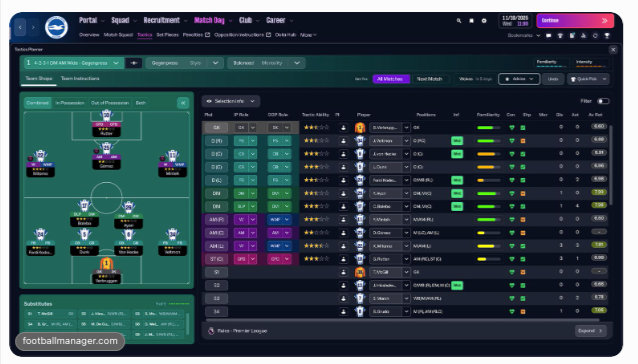
After Player Comparison
Your imported squad carries over when you open a related tool.
Compare FM27 players for the decision you need to make
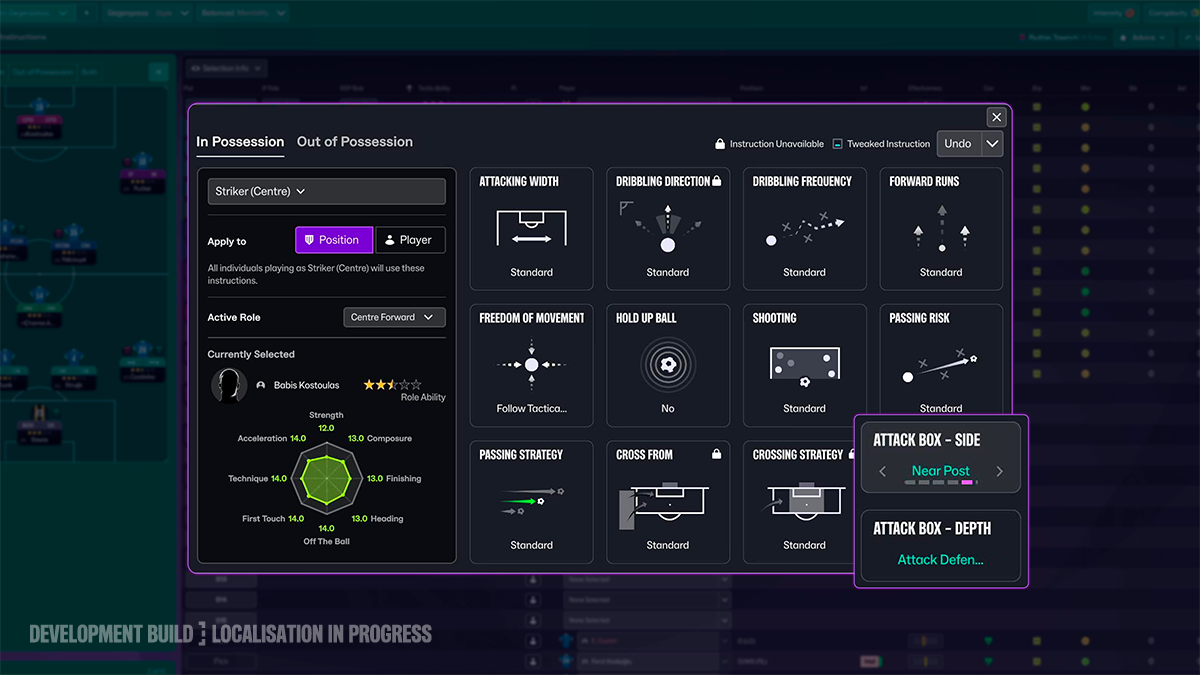
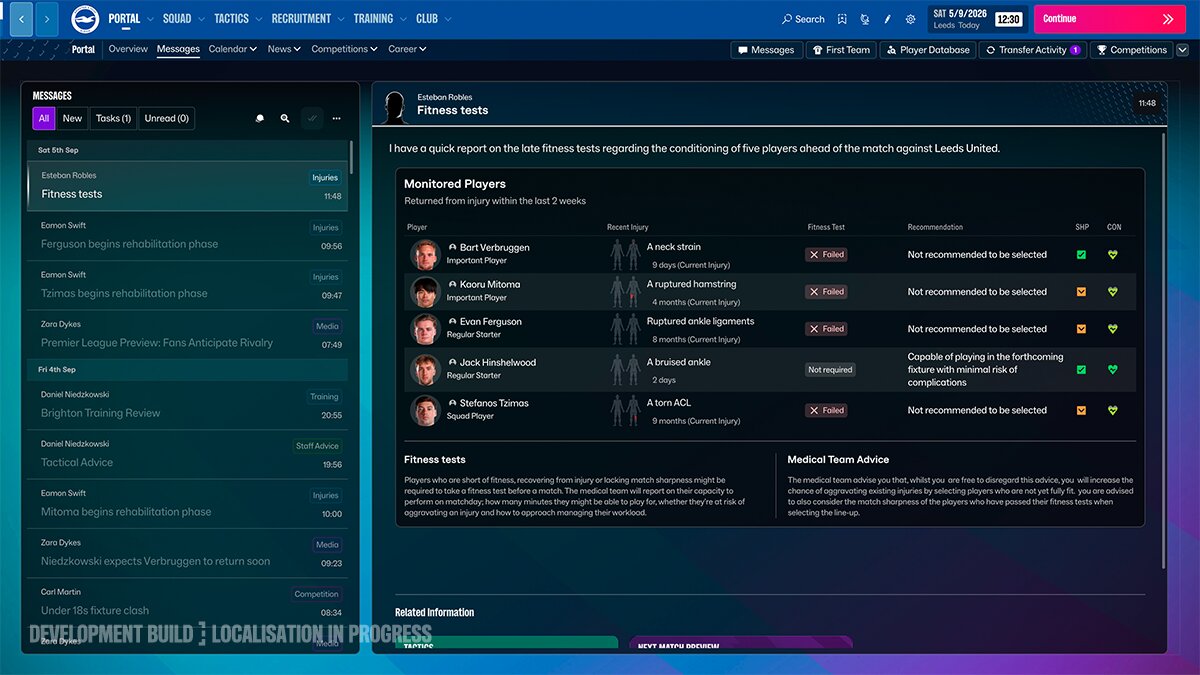
Replacing a starter, finding a backup and reducing a wage bill are different decisions. Choose the purpose first, then compare up to three imported players side by side. The page suggests an initial pair from your squad and shortlist, so you can start without building a manual table.
For a replacement, read role fit, age, wages and contract context beside the current starter. For cover, pay attention to position range and whether the player can fill the exposed slot. For wages, see the salary reading next to the football evidence rather than declaring the cheapest player best. The conclusion cites the available fields; an absent wage or attribute cannot quietly decide the result.
Test the cost of your preferred optionWhat is missing from a CSV comparison?
A squad export can describe positions, attributes, playing time and financial readings, but it cannot prove a future transfer, hidden development or match performance. When a shortlisted player belongs to another club, check the fee and contract terms in your save. Use the comparison to narrow the question, then use the transfer planner to test an actual deal scenario.
Make the comparison match the reason you opened it
If you are replacing a starter, keep that player as the reference and compare candidates for the same job. Look at the listed positions first, then role attributes, age, wages and contract dates where the file contains them. A candidate who offers more roles may still cost more than the squad can carry. The page suggests an initial pair, and you can change any of the three names without rebuilding the imported squad.
If the question is backup cover, inspect whether the candidate can protect the exact position that becomes empty in a depth test. If the question is wage commitment, compare the wage reading alongside the playing evidence rather than treating the lowest figure as the answer. Some exports contain neither wage nor sufficient attributes. The conclusion then names the narrower comparison it can make and leaves the financial or role decision open.
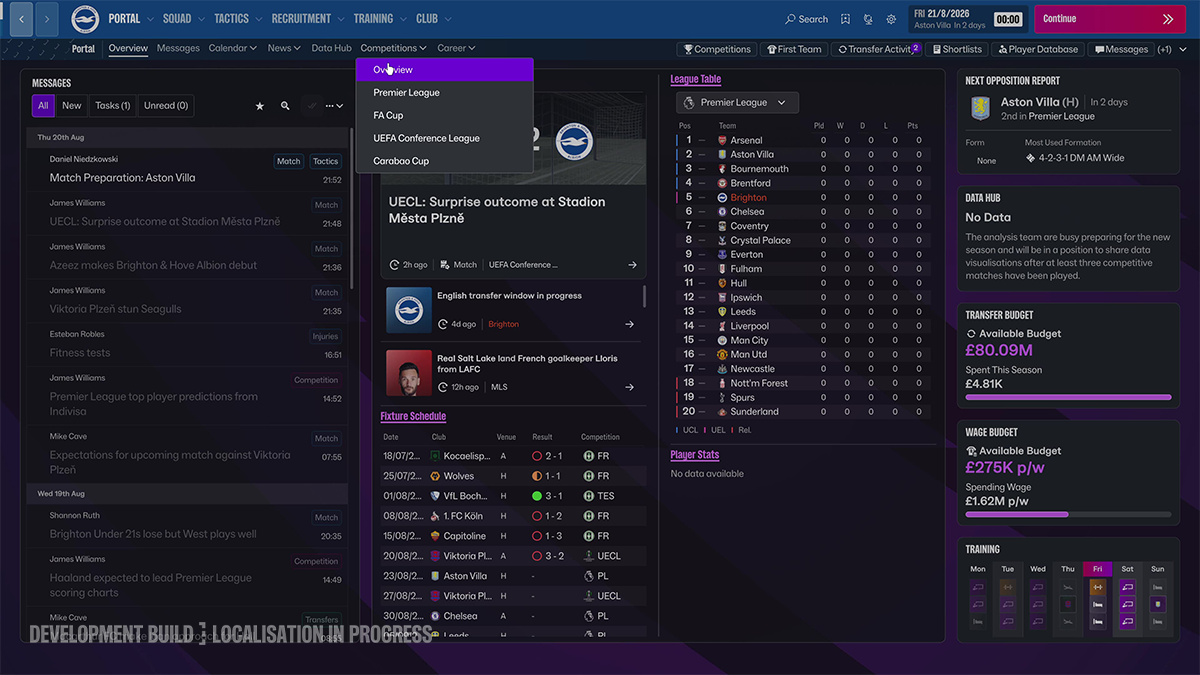
Use Player Comparison for your next decision
Get a reasoned comparison for a replacement, a backup or a wage decision.
- Choose the decision you are making.
- Keep the suggested players or select up to three names.
- Read the conclusion before opening the full comparison table.
Does the comparison tell me whom to sign?
It shows which selected player better matches the available evidence for your goal. It cannot predict match performance or whether a transfer will succeed.
What these results can tell you
Your player names, positions and other readings come from the file you choose. Missing values stay unknown. Your squad remains in this browser until you remove it.
Role comparisons use a FMSuperScout community model when the needed attributes are present. Its estimate is separate from FM27’s own ratings and match performance.