Scene maker
DDLC Dialogue Generator: Build a Conversation Image
A usable frame is already on screen: Sayori, the clubroom and a text box. Change the line, add a second character or another frame, then export the picture.
Write the first frame
The default scene is ready to export. A speaker, a background and a text box are already set, so the line is the only thing that has to change.
Live preview
Building the preview…
Storyboard 1 of 8
Line
Characters
Click anywhere in a slot to focus it. Expression picks and the name box follow the focused slot.
Only one slot can speak at a time. Emptying the speaking slot hands the name box to the other character, or to nobody.
Background
Shape and name
Frames
Frame 1 of 1. Up to 8 frames. The first added frame starts blank; later additions copy the frame you are editing.
Starter lines
Replace the line in frame 1 with a ready-made starter.
Browse every character and expression
Pick any sprite to load it into the focused slot (left). Only ordinary expressions are included.
Sayori
Natsuki
Yuri
Monika
Every frame uses the game's own backgrounds, sprites and text box, all official art. The PNGs and ZIP are generated in your browser and nothing is uploaded.
Three moves from a draft line to a file
The first frame is usable before you touch a control. Change a setting only when the line needs a different speaker, place or shape.
- Type the line
The line can be up to 220 characters, though the box shows only three lines. One or two short sentences read better than a paragraph, which gets wrapped and may be trimmed.
- Set the speaker and the stage
Choose the left or right slot, then a character, a face from A to F and a pose. Pick a background and a frame shape. The speaking slot owns the name box; the other character stays visible without a second line.
- Export one frame or the storyboard
Download this frame for a single PNG, or download all frames as a ZIP with one image per frame, numbered in order.
What the PNG contains
The download is a flat picture of the frame: the background, up to two character sprites, the name box when a speaker has one, and the text box with your line. Nothing from the surrounding interface is included, and the picture is built on your own device without being sent anywhere.
The file is either 1280 by 720 for the wide shape or 720 by 1280 for the portrait shape. It is not a layered project and cannot be reopened to edit the text later, so keep the wording you want before you export.
A storyboard ZIP is a set of these pictures, one per frame, named in order. Frames can use different backgrounds or shapes, so a single archive may mix wide and portrait images. That is expected, not a broken export.
Writing for a three-line box
The text box fits three lines at export size. A longer line is wrapped, and anything that still does not fit is cut and marked with an ellipsis, so a paragraph is a poor fit even under the 220-character limit.
Words wrap automatically. A line break typed into the box is not a layout control, and the same line can wrap differently in the wide and portrait shapes. Preview the frame in the shape you plan to download before deciding the wording is final.
The name box takes a short label, capped at 16 characters. A member’s own name fits comfortably; a long title does not. Clearing the label removes the name box entirely, which is useful when the speaker should stay unidentified.
Two shapes, two uses
Shape is set per frame. A conversation can switch shape between panels if the scene changes setting.
| Shape | Pixel size | Works for |
|---|---|---|
| Wide | 1280 × 720 | A clubroom exchange, a two-character standoff or an establishing shot. |
| Portrait | 720 × 1280 | A tall panel, a single reaction or a vertical story post. |
Putting two characters in one frame
Each frame has a left slot and a right slot. Filling both puts two sprites in the same scene, and only the speaking slot shows a name box. The silent character remains on screen at the other side, which is enough for a reaction without writing a second line.
Positions are fixed rather than draggable: a single character stands at the center, and a pair sits left and right. Both sprites keep the same height, so the pair has a visible gap between them; a wide frame leaves more room around them than a portrait one.
One frame holds one line. If both characters need to speak, give each a frame and alternate the speaker. A two-frame exchange reads more naturally than squeezing two names into one text box.
The same character can be placed in both slots, but the effect is usually confusing. If a scene needs two versions of one member, use two frames with a changed face instead.
When a conversation needs more than one frame
The storyboard holds up to eight frames. Add a frame to continue the exchange, duplicate one to keep its staging and change only the line, or reorder frames so the reply lands in the right place. Deleting a frame leaves at least one panel in the storyboard.
Frame tabs show a short label and a number. Use them to check the order before exporting, especially after a duplicate, because the ZIP follows the tab order rather than the order in which the frames were written.
The storyboard is not saved between visits. Finish the scene and download it in one sitting, or keep the ZIP as the copy you can reopen later as images.
Four checks before exporting a storyboard
- Read the tabs in order
The ZIP follows the tab order, not the order in which the lines were written. Move a frame before the export, not after it.
- Confirm who speaks in each frame
One slot owns the name box. If the wrong character is speaking, the preview will show the wrong name even when both sprites look correct.
- Check the name labels
A label is capped at 16 characters, and an empty label means no name box. Short names read cleanly; the box will not accept anything longer.
- Expect a mixed archive
Each frame carries its own shape. A ZIP can contain both wide and portrait images, so check the files rather than assuming one size.
Five lines that fit a single frame
Each line is short enough for the default text box. Change the wording so it matches the character you stage.
| Line | Why it fits |
|---|---|
| The club room is quieter after the bell. | Sets a place and a time without needing a second panel. |
| You rewrote the ending again, did you not? | A direct question that gives the other character something to answer. |
| I brought two cupcakes, so choose quickly. | A small conflict that works with two characters in one frame. |
| Do not read the last page until I leave. | A request that creates a pause and invites a follow-up frame. |
| The posters can wait until tomorrow. | A calm closing line for the final panel of a short scene. |
The boundary around the art
- Official sprites only
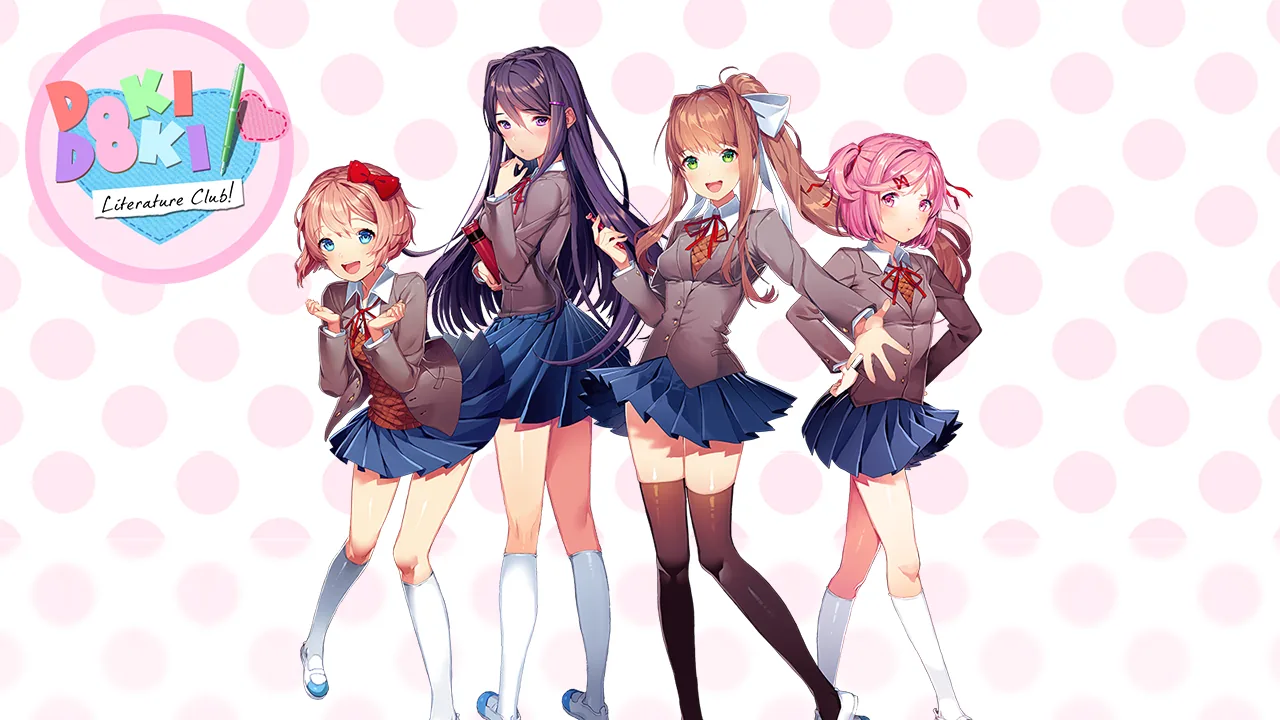
The 36 dialogue sprites are the ordinary school-uniform layers: four characters, six faces each, with a second body layer for Sayori and Monika.
- Ten in-game backgrounds
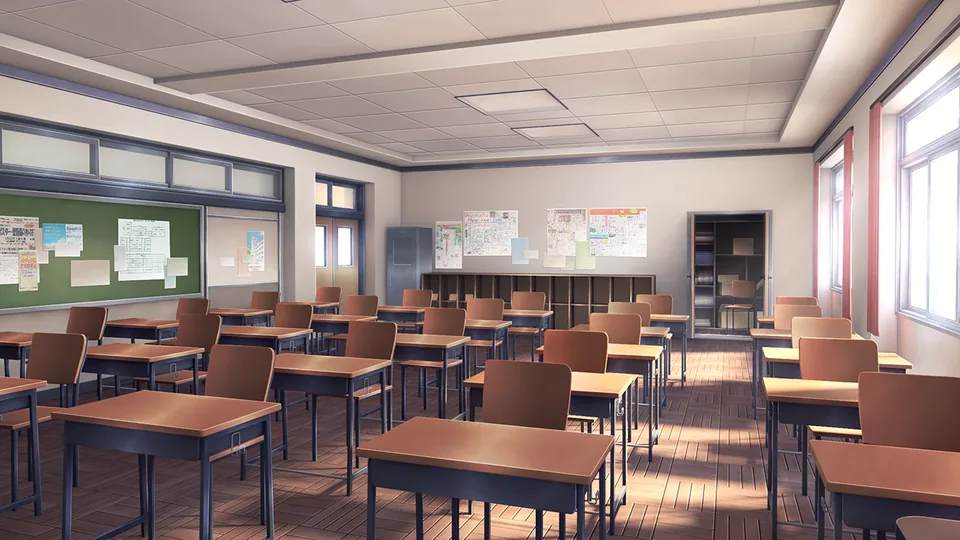
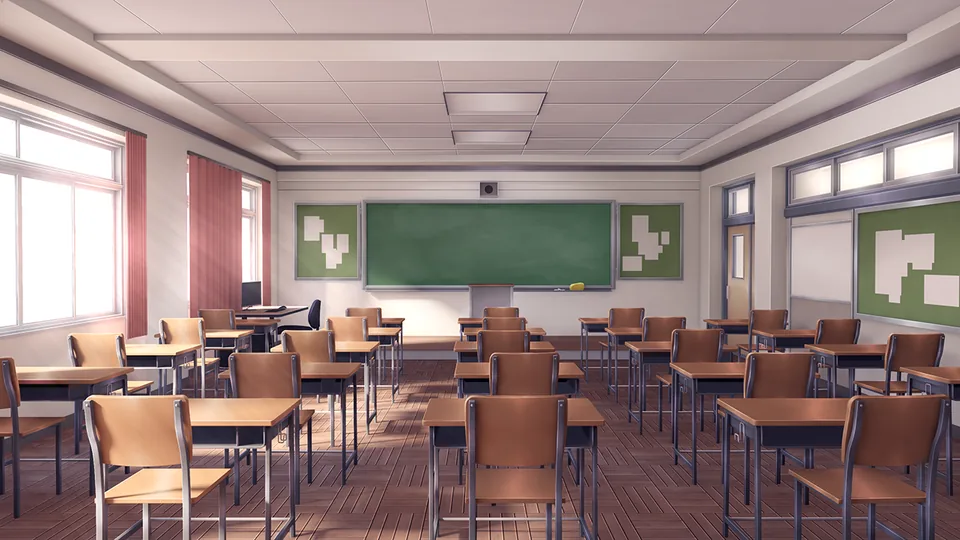
Clubroom, classroom, corridor, residential street, house exterior, bedroom, Sayori’s bedroom, kitchen, closet and a notebook page. No story CG is available.
- No generated characters
The scene maker does not draw a new member, recolor a sprite or accept outside artwork. What you stage is the art the game already uses.
- Fan work, not the game
The result is an unofficial fan image. It does not connect to a save, unlock a scene or change anything in either edition.
The pieces inside the frame